
This is a quick-start blog to use Sitecore Search with XM Cloud.
Set Up Search
Assuming a local development Docker environment is up and running for XM Cloud, and the Search app has been added to your Sitecore Cloud Portal, log into Sitecore Cloud Portal and click on the Search app and then Sources.
Create a Source
In the Sources section you can add a new Source with a name and a description. For this demo, I chose Connection Type of Web Crawler (Advanced). If you have to choose an entity, choose “Content”, the out of the box entity.
Click on Edit for the Web Crawler. Scroll down to Web Crawler Settings and edit the settings by adding the Allowed Domains, Max Depth, and Max URLs.

I added two triggers to my Source. One of type Request for the root of the domain URL with the Method of Get and another of type Sitemap with a link to the site’s sitemap. If you have a sitemap page on the site you are crawling, add that here as a Trigger.
Add or edit the Document Extractor while looking at the source of the web site you intend to crawl. Here, you can pull the meta data that you want to use for the search results page and use Cheerio to format it. I edited the Sitecore Default Document Extractor and changed the Extractor Type from Xpath to JS.
At least one Tag is required, so click on Add a Tagger. This interface provides you with a default JavaScript function to extract meta data from the pages of your source. This needs to be configured to match the actual meta data on your site. It is best to configure it while also looking at the Page Source of the site you are crawling.
The default fields pulled from the crawler are description, name, type and url. (I added breadcrumbs in some configurations.) Below are two examples I have used:
function extract(request, response) {
    $ = response.body;
    return [{
        'description': $('meta[name="description"]').attr('content') || $('meta[property="og:description"]').attr('content') || $('p:nth(5)').text(),
        'name': $('meta[name="searchtitle"]').attr('content') || $('meta[property="og:title"]').attr('content'),
        'type': $('meta[property="og:type"]').attr('content') || 'website',
        'url': $('meta[property="og:url"]').attr('content') || $('link[ref="alternate"]').attr('href') || 'default_url',
        'breadcrumbs': $('section[class="breadcrumbs"]').text()
    }]
}
In the example above, notice that each page has a good description of the page in the fifth paragraph on each page. Also, the fully-qualified URL of the page was in the link ref="alternate" meta data tag. The page also had breadcrumbs I could use in the search results.
function extract(request, response) {
    $ = response.body;
    return [{
        'description': $('meta[name="description"]').attr('content') || $('meta[property="og:description"]').attr('content') || $('p').text(),
        'name': $('meta[name="searchtitle"]').attr('content') || $('title').text(),
        'type': $('meta[property="og:type"]').attr('content') || 'website_content',
        'url': $('meta[property="og:url"]').attr('content')
    }];
}
In the example above, I use the out of the box function because the second OR statement matches the meta data from my pages for description. I do not have many types so most pages will default to website_content, or whatever text I put in these single quotes.
I did not set up a schedule for this crawler but you can set it up to run every 24 hours or so, depending upon how often your content changes.
The last step for the Source is to publish and it. You can trigger a scan/crawl at the time of publishing. The crawl will be queued.
Check the Content of the Crawl
When the crawler finishes, you can see if our meta data was picked up properly by clicking on Content Collection in the left-side menu and then clicking on Content.
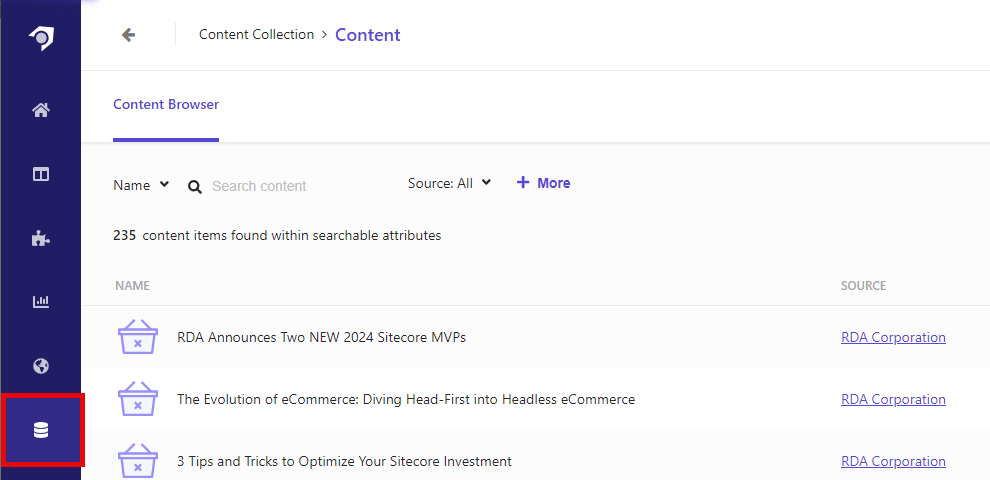
Clicking on any content item in the list displays the details extracted for that item, including the ID, Content Type, Description, Name/Title, and URL.
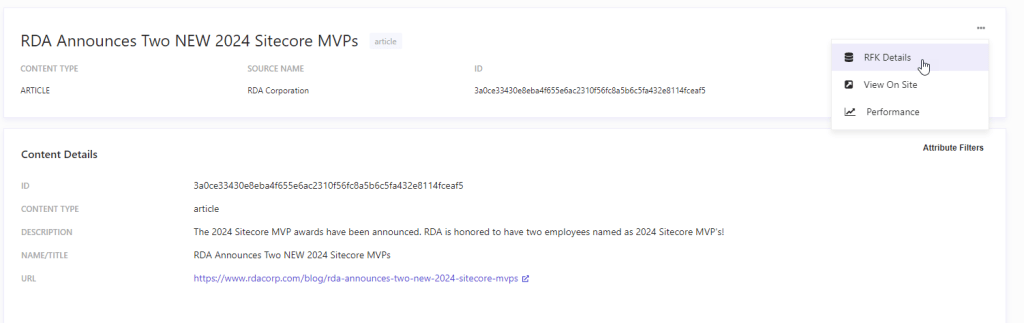
To see all of the extracted data in a raw format, to help debug issues, click on and item, then the ellipse in the top, right-hand corner of the item and choose RFK Details.
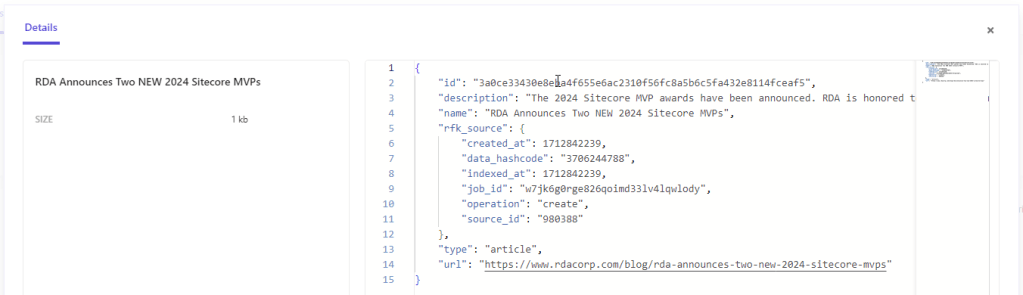
Here you see the raw data from the captured meta data. When you have a search results pages and some results are missing data like name or description, you can use this interface to find the content and investigate further.
Now that we have content, the only thing we need is a widget to reference from our page when accessing the content. Click on Widgets and make sure there is an out-of-the-box widget for Search Results. Before moving to the code, note the following values that will be utilized in the code:
- RFK ID of the widget, such as “rfkid_7”
- Source ID from the Sources page
- Customer Key from the Developer Resources page
- API Key from the Developer Resources page
Click on Developer Resource icon on the left navigation to see a page with the Customer Key and then click the Copy icon to copy the API key. With those four values we can start to program.
Generate Code for Search Results Page in React
In the code base, in the React directory, I ran these commands to get the Sitecore search modules and the Sitecore UI modules installed:
- npm install @sitecore-search/react
- npm install @sitecore-search/ui
- npm install @sitecore-search/cli
In the React root (/src/{project name}), create a file called .sc-search-settings.json with the location you want the out-of-the-box search components to go. Mine looks like this:
{
  "components-path": "src/components"
}
Run the following command to have an interactive session that creates an out of the box component catered to your needs:
npx sc-search new-widget
When using the interactive session, use the up and down arrow keys to make your choices, note that the green option with the chevron next to it is the choice you are picking.
The options I chose were:
typescript
content
SearchResultsWithInput
No styles
yes
search
yes
This creates a search directory in my React components folder with a TypeScript file named index.tsx in it. I leave this for now and set up environment variables and Sitecore Rendering Parameters for the Customer Key, API Key and the Index Sources and Widget RFK ID respectfully.
Environment Variables
I add environment variables for Docker and the React app in four places so I can use the Customer Key and the API Key in the XM Cloud application.
I add these values to the .env file in the root of the code base (for Docker). Here you enter the actual values you gathered earlier.
SITECORE_SEARCH_CUSTOMER_KEY={########-########}
SITECORE_SEARCH_API_KEY={##-dddddddd-dddddddddddddddddddddddddddddddddddddddd}
The Customer Key is all numbers and the API Key consists of numbers and letters. I added the environment values to the .env file in the React App root (/src/{project name}) but left them blank.
SITECORE_SEARCH_CUSTOMER_KEY=
SITECORE_SEARCH_API_KEY=
To make these environment variables available to the code, I also add them to the generate-config.ts file in the scripts folder. Add them to the defaultConfig constant.
  sitecoreSearchCustomerKey: process.env[`${constantCase('SITECORE_SEARCH_CUSTOMER_KEY')}`],
  sitecoreSearchApiKey: process.env[`${constantCase('SITECORE_SEARCH_API_KEY')}`],
I also add them to the docker-compose-override.yml file for the Rendering service:
      SITECORE_SEARCH_CUSTOMER_KEY: ${SITECORE_SEARCH_CUSTOMER_KEY}
      SITECORE_SEARCH_API_KEY: ${SITECORE_SEARCH_API_KEY}
Sitecore Cloud Portal
If you are going to Preview the search page in Pages or the Content Editor, make sure to add the Environment Variables to the variables in your environment. Go to XM Cloud Deploy >> Projects >> {Your Project} >> {Your Environment} >> … (Click on the ellipse) >> Manage Variables >> Create Variable >> and then create a variable for SITECORE_SEARCH_CUSTOMER_KEY (I make them as secrets) and one for SITECORE_SEARCH_API_KEY with the values of each key.
Rendering Host
To use search on the front end rendering host add the variables in that location as well.
Rendering Parameters and Search Results Sitecore Item
The other variables, Index Sources and Widget RFK ID, I add to Rendering Parameters so they can be dynamic from the Sitecore Content Editor. Index Sources can be an array of values so that you can mix and match different sources on your Search Results page.
Rendering Parameters
I make a new folder in my site Project folder in the Sitecore tree called “Rendering Parameters” and create a new Data template based off of /sitecore/templates/System/Layout/Rendering Parameters/Standard Rendering Parameters called “Search Rendering Parameters”. I added two Single-line Text fields to that template called Index Sources and Widget RFK ID.
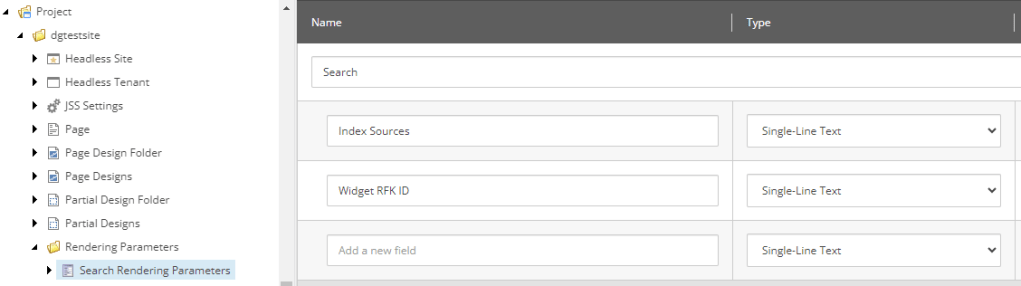
Rendering
I create a new Json Rendering in the Renderings folder called Search. For the placeholder field I add headless-main. For the Parameters Template field I choose the Rendering Parameters created in the last section.
Partial Design
I create a new Partial Design called “Search” and added the Search component to the headless-main placeholder in the Presentation Details of the Final Layout.
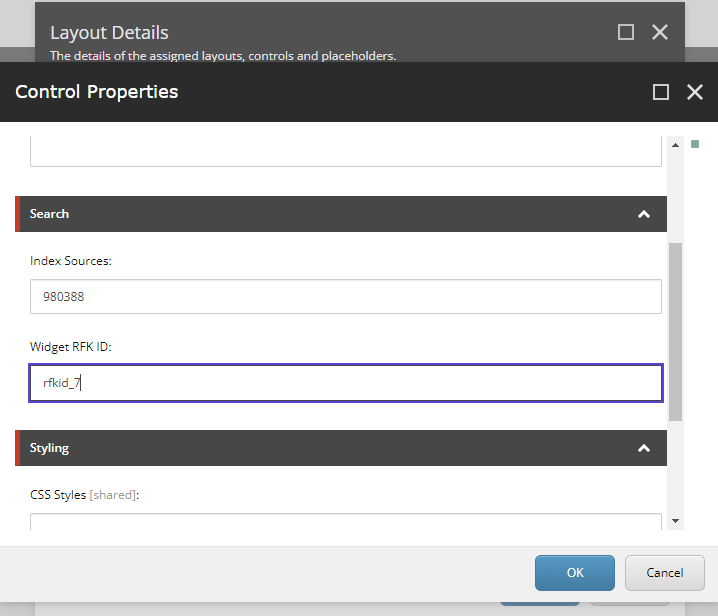
Add your Index Source (or several separated by commas) and your Widget RFK ID to the Rendering Parameters of the Search component.
Page Design
I created a new Page Design called “Search” utilizing the Partial Design just created.
Page
I created a new page called search utilizing the Page Design.
Customize the Search Code in React
I rename the TypeScript component created for me “SearchResults.tsx”. I make a copy of the component and I call it “SearchResultsNoSort.tsx”. The Sitecore Rendering points to a file called Search which does not exist yet. I create a Search.tsx file to get my variables and pass them into the OOTB code. I will use one with no sorting values because when I first made a search page I did not have access to Sort in the Domain Settings within the Administration tab of the Sitecore Search app. I will make one with sorting values because since then I am now able to access this section of Sitecore Search. So either way you can see an example.
I add the following code to my new Search.tsx file:
import React from 'react';
import { WidgetsProvider, Environment, WidgetDataType, widget } from '@sitecore-search/react';
import { searchComponent } from './SearchResultsNoSort';
import config from 'temp/config';

const SitecoreSearchComponent = widget(
  searchComponent,
  WidgetDataType.SEARCH_RESULTS,
  'content'
);

type SearchProps = {
  params: { [key: string]: string };
};

export const Default = (props: SearchProps): JSX.Element => {
  const indexSources = props.params['Index Sources'];
  const rfkId = props.params['Widget RFK ID'];
  const myEnv: Environment = 'prod'; // dev failed; staging failed; prod did not fail, did not produce results; uat failed with empty property; apse2 gave 403

  return (
    <WidgetsProvider
      env={myEnv}
      customerKey={config.sitecoreSearchCustomerKey}
      apiKey={config.sitecoreSearchApiKey}
    >
      <section className="article-content">
        <div className="container">
          <div className="row">
            <SitecoreSearchComponent rfkId={rfkId} indexSources={indexSources} />
          </div>
        </div>
      </section>
    </WidgetsProvider>
  );
};
To get this code to work with the SearchResults.tsx code, I added indexSources to the ArticleSearchResultsProps type:
indexSources: string;
And add indexSource to the searchComponent constant.
indexSources
In the useSearchResults call, before setting the state, I add a query:
   query: (query) =>
      query.getRequest().setSources(indexSources.toString().replace(' ', '').split(',')),
So you can utilize multiple index sources in the search results.
No Sort
If you are unable to access Sort in the Domain Settings within the Administration tab of the Sitecore Search app, you must remove sorting from the OOTB generated code for your search results to work.
To remove all references to sort I searched for “sortType” and then “sort” in the code and removed all references. I made these deleteions:
defaultSortTypefromArticlesSearchResultsPropssortTypefromInitialStatedefaultSortTypefromsearchComponentonSortChangefrom actionssortTypefromStatesortfromdatasortTypefromState(inuseSearchResults)const selectedSortIndexSortSelectcomponent
I added {a.description} after {a.content_text}, and then I was able to see crud results.
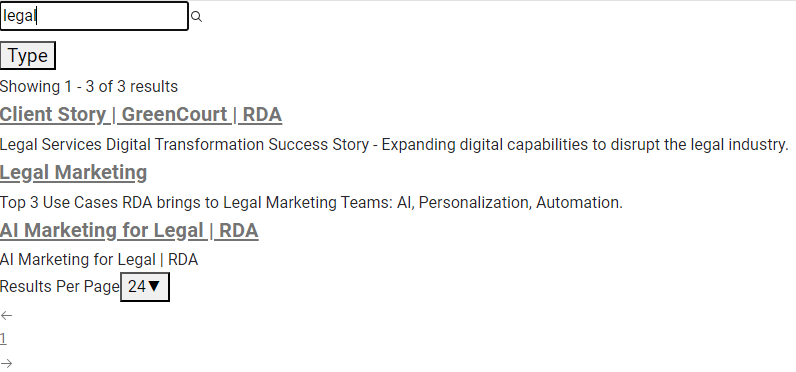
To see the full code set, look at Appendix A below.
Sort
If you are able to access Sort in the Domain Settings within the Administration tab of Sitecore Search, you must add a sort property to Sitecore Search for your search results to work.
Make sure to change your Search.tsx file to point to the Search code with Sort. Also, make sure that code has all the code to use indexSources.
import { searchComponent } from './SearchResults';
In Sitecore Cloud Portal, in Sitecore Search, go to Domain Settings >> Feature Configuration >> Sorting Options. Click on the Add Sorting Options. Click on the Edit symbol and add a Name and the API Name of “featured_desc” (this is the name already in the code). Click Save and then Publish and Reindex.
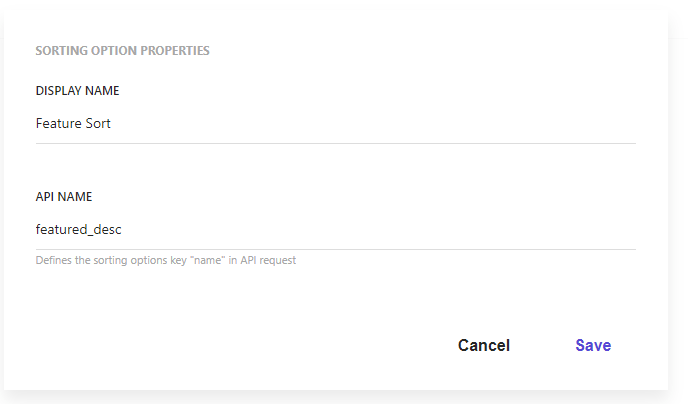
This change will get the out-of-the-box code to work, but it really doesn’t set up a valid sorting option. To see the full code set, look at Appendix B below.
References
- https://doc.sitecore.com/search (Opens in new window or tab)
- https://blogs.perficient.com/2023/04/24/getting-to-know-sitecore-search/
Appendix A — Entire No Sort Code
import {
  ArrowLeftIcon,
  ArrowRightIcon,
  CheckIcon,
  MagnifyingGlassIcon,
} from '@radix-ui/react-icons';
import { debounce } from '@sitecore-search/common';
import type { SearchResultsInitialState, SearchResultsStoreState } from '@sitecore-search/react';
import {
  WidgetDataType,
  useSearchResults,
  useSearchResultsSelectedFilters,
  widget,
} from '@sitecore-search/react';
import {
  AccordionFacets,
  ArticleCard,
  FacetItem,
  Pagination,
  Presence,
  SearchResultsAccordionFacets,
  Select,
  SortSelect,
} from '@sitecore-search/ui';

type ArticleModel = {
  id: string;
  type?: string;
  title?: string;
  name?: string;
  subtitle?: string;
  url?: string;
  description?: string;
  content_text?: string;
  image_url?: string;
  source_id?: string;
};
type ArticlesSearchResultsProps = {
  defaultPage?: SearchResultsStoreState['page'];
  defaultItemsPerPage?: SearchResultsStoreState['itemsPerPage'];
  defaultKeyphrase?: SearchResultsStoreState['keyphrase'];
  indexSources: string;
};
type InitialState = SearchResultsInitialState<'itemsPerPage' | 'keyphrase' | 'page'>;
const buildRangeLabel = (min: number | undefined, max: number | undefined): string => {
  return typeof min === 'undefined'
    ? `< $${max}`
    : typeof max === 'undefined'
    ? ` > $${min}`
    : `$${min} - $${max}`;
};
// eslint-disable-next-line @typescript-eslint/no-explicit-any
const buildFacetLabel = (selectedFacet: any) => {
  if ('min' in selectedFacet || 'max' in selectedFacet) {
    return `${selectedFacet.facetLabel}: ${buildRangeLabel(selectedFacet.min, selectedFacet.max)}`;
  }
  return `${selectedFacet.facetLabel}: ${selectedFacet.valueLabel}`;
};
export const SearchComponent = ({
  defaultPage = 1,
  defaultKeyphrase = '',
  defaultItemsPerPage = 24,
  indexSources,
}: ArticlesSearchResultsProps) => {
  const {
    widgetRef,
    actions: {
      onKeyphraseChange,
      onResultsPerPageChange,
      onPageNumberChange,
      onRemoveFilter,
      onFacetClick,
      onClearFilters,
      onItemClick,
    },
    // eslint-disable-next-line @typescript-eslint/no-unused-vars
    state: { page, itemsPerPage },
    queryResult: {
      isFetching,
      isLoading,
      data: { total_item: totalItems = 0, facet: facets = [], content: articles = [] } = {},
    },
  } = useSearchResults<ArticleModel, InitialState>({
    query: (query) =>
      query.getRequest().setSources(indexSources.toString().replace(' ', '').split(',')),

    state: {
      page: defaultPage,
      itemsPerPage: defaultItemsPerPage,
      keyphrase: defaultKeyphrase,
    },
  });
  const totalPages = Math.ceil(totalItems / itemsPerPage);
  const keyphraseChangeFn = debounce((e) => {
    onKeyphraseChange({
      keyphrase: e.target.value,
    });
  }, 200);

  const selectedFacetsFromApi = useSearchResultsSelectedFilters();
  if (isLoading) {
    return (
      <div>
        <Presence present={isLoading}>
          <svg
            aria-busy={isLoading}
            aria-hidden={!isLoading}
            focusable="false"
            role="progressbar"
            viewBox="0 0 20 20"
          >
            <path d="M7.229 1.173a9.25 9.25 0 1 0 11.655 11.412 1.25 1.25 0 1 0-2.4-.698 6.75 6.75 0 1 1-8.506-8.329 1.25 1.25 0 1 0-.75-2.385z" />
          </svg>
        </Presence>
      </div>
    );
  }
  return (
    <div ref={widgetRef}>
      <div>
        <input onChange={(e) => keyphraseChangeFn(e)} data-testid="contentSRInput" />
        <MagnifyingGlassIcon />
      </div>
      <div>
        {isFetching && (
          <div>
            <Presence present={true}>
              <svg
                aria-busy={true}
                aria-hidden={false}
                focusable="false"
                role="progressbar"
                viewBox="0 0 20 20"
              >
                <path d="M7.229 1.173a9.25 9.25 0 1 0 11.655 11.412 1.25 1.25 0 1 0-2.4-.698 6.75 6.75 0 1 1-8.506-8.329 1.25 1.25 0 1 0-.75-2.385z" />
              </svg>
            </Presence>
          </div>
        )}
        {totalItems > 0 && (
          <>
            <section>
              {selectedFacetsFromApi.length > 0 && (
                <button onClick={onClearFilters}>Clear Filters</button>
              )}
              <ul>
                {selectedFacetsFromApi.map((selectedFacet) => (
                  <li
                    key={`${selectedFacet.facetId}${selectedFacet.facetLabel}${selectedFacet.valueLabel}`}
                  >
                    <span>{buildFacetLabel(selectedFacet)}</span>
                    <button onClick={() => onRemoveFilter(selectedFacet)}>X</button>
                  </li>
                ))}
              </ul>
              <SearchResultsAccordionFacets
                defaultFacetTypesExpandedList={[]}
                onFacetValueClick={onFacetClick}
              >
                {facets.map((f) => (
                  <AccordionFacets.Facet facetId={f.name} key={f.name}>
                    <AccordionFacets.Header>
                      <AccordionFacets.Trigger>{f.label}</AccordionFacets.Trigger>
                    </AccordionFacets.Header>
                    <AccordionFacets.Content>
                      <AccordionFacets.ValueList>
                        {f.value.map((v, index) => (
                          <FacetItem
                            {...{
                              index,
                              facetValueId: v.id,
                            }}
                            key={v.id}
                          >
                            <AccordionFacets.ItemCheckbox>
                              <AccordionFacets.ItemCheckboxIndicator>
                                <CheckIcon />
                              </AccordionFacets.ItemCheckboxIndicator>
                            </AccordionFacets.ItemCheckbox>
                            <AccordionFacets.ItemLabel>
                              {v.text} {v.count && `(${v.count})`}
                            </AccordionFacets.ItemLabel>
                          </FacetItem>
                        ))}
                      </AccordionFacets.ValueList>
                    </AccordionFacets.Content>
                  </AccordionFacets.Facet>
                ))}
              </SearchResultsAccordionFacets>
            </section>
            <section>
              {/* Sort Select */}
              <section>
                {totalItems && (
                  <div>
                    Showing {itemsPerPage * (page - 1) + 1} -{' '}
                    {itemsPerPage * (page - 1) + articles.length} of {totalItems} results
                  </div>
                )}
              </section>

              {/* Results */}
              <div>
                {articles.map((a, index) => (
                  <ArticleCard.Root key={a.id} article={a as ArticleModel}>
                    <ArticleCard.Title data-testid="contentSRItemTitle">
                      <a
                        href="#"
                        onClick={(e) => {
                          e.preventDefault();
                          onItemClick({
                            id: a.id,
                            index,
                            sourceId: a.source_id,
                          });
                          window.open(a.url, '_blank');
                        }}
                        data-testid="contentSRItemLink"
                      >
                        {a.title || a.name}
                      </a>
                    </ArticleCard.Title>
                    <ArticleCard.Content>
                      <ArticleCard.Image data-testid="contentSRItemImage" />
                      {a.content_text}
                      {a.description}
                    </ArticleCard.Content>
                  </ArticleCard.Root>
                ))}
              </div>

              <div>
                <div>
                  <label>Results Per Page</label>
                  <Select.Root
                    defaultValue={String(defaultItemsPerPage)}
                    onValueChange={(v) =>
                      onResultsPerPageChange({
                        numItems: Number(v),
                      })
                    }
                  >
                    <Select.Trigger>
                      <Select.SelectValue />
                      <Select.Icon />
                    </Select.Trigger>
                    <Select.SelectContent>
                      <Select.Viewport>
                        <Select.SelectItem value="24">
                          <SortSelect.OptionText>24</SortSelect.OptionText>
                        </Select.SelectItem>

                        <Select.SelectItem value="48">
                          <SortSelect.OptionText>48</SortSelect.OptionText>
                        </Select.SelectItem>

                        <Select.SelectItem value="64">
                          <SortSelect.OptionText>64</SortSelect.OptionText>
                        </Select.SelectItem>
                      </Select.Viewport>
                    </Select.SelectContent>
                  </Select.Root>
                </div>
                <div>
                  <Pagination.Root
                    currentPage={page}
                    defaultCurrentPage={1}
                    totalPages={totalPages}
                    onPageChange={(v) =>
                      onPageNumberChange({
                        page: v,
                      })
                    }
                  >
                    <Pagination.PrevPage onClick={(e) => e.preventDefault()}>
                      <ArrowLeftIcon />
                    </Pagination.PrevPage>
                    <Pagination.Pages>
                      {(pagination) =>
                        Pagination.paginationLayout(pagination, {
                          boundaryCount: 1,
                          siblingCount: 1,
                        }).map(({ page, type }) =>
                          type === 'page' ? (
                            <Pagination.Page
                              key={page}
                              aria-label={`Page ${page}`}
                              page={page as number}
                              onClick={(e) => e.preventDefault()}
                            >
                              {page}
                            </Pagination.Page>
                          ) : (
                            <span key={type}>...</span>
                          )
                        )
                      }
                    </Pagination.Pages>
                    <Pagination.NextPage onClick={(e) => e.preventDefault()}>
                      <ArrowRightIcon />
                    </Pagination.NextPage>
                  </Pagination.Root>
                </div>
              </div>
            </section>
          </>
        )}
        {totalItems <= 0 && !isFetching && (
          <div>
            <h3>0 Results</h3>
          </div>
        )}
      </div>
    </div>
  );
};
const searchWidget = widget(SearchComponent, WidgetDataType.SEARCH_RESULTS, 'content');
export default searchWidget;
Appendix B — Entire Sort Code
import {
  ArrowLeftIcon,
  ArrowRightIcon,
  CheckIcon,
  MagnifyingGlassIcon,
} from '@radix-ui/react-icons';
import { debounce } from '@sitecore-search/common';
import type { SearchResultsInitialState, SearchResultsStoreState } from '@sitecore-search/react';
import {
  WidgetDataType,
  useSearchResults,
  useSearchResultsSelectedFilters,
  widget,
} from '@sitecore-search/react';
import {
  AccordionFacets,
  ArticleCard,
  FacetItem,
  Pagination,
  Presence,
  SearchResultsAccordionFacets,
  Select,
  SortSelect,
} from '@sitecore-search/ui';

type ArticleModel = {
  id: string;
  type?: string;
  title?: string;
  name?: string;
  subtitle?: string;
  url?: string;
  description?: string;
  content_text?: string;
  image_url?: string;
  source_id?: string;
};
type ArticlesSearchResultsProps = {
  defaultSortType?: SearchResultsStoreState['sortType'];
  defaultPage?: SearchResultsStoreState['page'];
  defaultItemsPerPage?: SearchResultsStoreState['itemsPerPage'];
  defaultKeyphrase?: SearchResultsStoreState['keyphrase'];
  indexSources: string;
};
type InitialState = SearchResultsInitialState<'itemsPerPage' | 'keyphrase' | 'page' | 'sortType'>;
const buildRangeLabel = (min: number | undefined, max: number | undefined): string => {
  return typeof min === 'undefined'
    ? `< $${max}`
    : typeof max === 'undefined'
    ? ` > $${min}`
    : `$${min} - $${max}`;
};
// eslint-disable-next-line @typescript-eslint/no-explicit-any
const buildFacetLabel = (selectedFacet: any) => {
  if ('min' in selectedFacet || 'max' in selectedFacet) {
    return `${selectedFacet.facetLabel}: ${buildRangeLabel(selectedFacet.min, selectedFacet.max)}`;
  }
  return `${selectedFacet.facetLabel}: ${selectedFacet.valueLabel}`;
};
export const SearchComponent = ({
  defaultSortType = 'featured_desc',
  defaultPage = 1,
  defaultKeyphrase = '',
  defaultItemsPerPage = 24,
  indexSources,
}: ArticlesSearchResultsProps) => {
  const {
    widgetRef,
    actions: {
      onKeyphraseChange,
      onResultsPerPageChange,
      onPageNumberChange,
      onRemoveFilter,
      onSortChange,
      onFacetClick,
      onClearFilters,
      onItemClick,
    },
    // eslint-disable-next-line @typescript-eslint/no-unused-vars
    state: { sortType, page, itemsPerPage },
    queryResult: {
      isFetching,
      isLoading,
      data: {
        total_item: totalItems = 0,
        sort: { choices: sortChoices = [] } = {},
        facet: facets = [],
        content: articles = [],
      } = {},
    },
  } = useSearchResults<ArticleModel, InitialState>({
    query: (query) =>
      query.getRequest().setSources(indexSources.toString().replace(' ', '').split(',')),

    state: {
      sortType: defaultSortType,
      page: defaultPage,
      itemsPerPage: defaultItemsPerPage,
      keyphrase: defaultKeyphrase,
    },
  });
  const totalPages = Math.ceil(totalItems / itemsPerPage);
  const keyphraseChangeFn = debounce((e) => {
    onKeyphraseChange({
      keyphrase: e.target.value,
    });
  }, 200);
  const selectedSortIndex = sortChoices.findIndex((s) => s.name === sortType);
  const selectedFacetsFromApi = useSearchResultsSelectedFilters();
  if (isLoading) {
    return (
      <div>
        <Presence present={isLoading}>
          <svg
            aria-busy={isLoading}
            aria-hidden={!isLoading}
            focusable="false"
            role="progressbar"
            viewBox="0 0 20 20"
          >
            <path d="M7.229 1.173a9.25 9.25 0 1 0 11.655 11.412 1.25 1.25 0 1 0-2.4-.698 6.75 6.75 0 1 1-8.506-8.329 1.25 1.25 0 1 0-.75-2.385z" />
          </svg>
        </Presence>
      </div>
    );
  }
  return (
    <div ref={widgetRef}>
      <div>
        <input onChange={(e) => keyphraseChangeFn(e)} data-testid="contentSRInput" />
        <MagnifyingGlassIcon />
      </div>
      <div>
        {isFetching && (
          <div>
            <Presence present={true}>
              <svg
                aria-busy={true}
                aria-hidden={false}
                focusable="false"
                role="progressbar"
                viewBox="0 0 20 20"
              >
                <path d="M7.229 1.173a9.25 9.25 0 1 0 11.655 11.412 1.25 1.25 0 1 0-2.4-.698 6.75 6.75 0 1 1-8.506-8.329 1.25 1.25 0 1 0-.75-2.385z" />
              </svg>
            </Presence>
          </div>
        )}
        {totalItems > 0 && (
          <>
            <section>
              {selectedFacetsFromApi.length > 0 && (
                <button onClick={onClearFilters}>Clear Filters</button>
              )}
              <ul>
                {selectedFacetsFromApi.map((selectedFacet) => (
                  <li
                    key={`${selectedFacet.facetId}${selectedFacet.facetLabel}${selectedFacet.valueLabel}`}
                  >
                    <span>{buildFacetLabel(selectedFacet)}</span>
                    <button onClick={() => onRemoveFilter(selectedFacet)}>X</button>
                  </li>
                ))}
              </ul>
              <SearchResultsAccordionFacets
                defaultFacetTypesExpandedList={[]}
                onFacetValueClick={onFacetClick}
              >
                {facets.map((f) => (
                  <AccordionFacets.Facet facetId={f.name} key={f.name}>
                    <AccordionFacets.Header>
                      <AccordionFacets.Trigger>{f.label}</AccordionFacets.Trigger>
                    </AccordionFacets.Header>
                    <AccordionFacets.Content>
                      <AccordionFacets.ValueList>
                        {f.value.map((v, index) => (
                          <FacetItem
                            {...{
                              index,
                              facetValueId: v.id,
                            }}
                            key={v.id}
                          >
                            <AccordionFacets.ItemCheckbox>
                              <AccordionFacets.ItemCheckboxIndicator>
                                <CheckIcon />
                              </AccordionFacets.ItemCheckboxIndicator>
                            </AccordionFacets.ItemCheckbox>
                            <AccordionFacets.ItemLabel>
                              {v.text} {v.count && `(${v.count})`}
                            </AccordionFacets.ItemLabel>
                          </FacetItem>
                        ))}
                      </AccordionFacets.ValueList>
                    </AccordionFacets.Content>
                  </AccordionFacets.Facet>
                ))}
              </SearchResultsAccordionFacets>
            </section>
            <section>
              {/* Sort Select */}
              <section>
                {totalItems && (
                  <div>
                    Showing {itemsPerPage * (page - 1) + 1} -{' '}
                    {itemsPerPage * (page - 1) + articles.length} of {totalItems} results
                  </div>
                )}
                <SortSelect.Root
                  defaultValue={sortChoices[selectedSortIndex]?.name}
                  onValueChange={onSortChange}
                >
                  <SortSelect.Trigger>
                    <SortSelect.SelectValue>
                      {selectedSortIndex > -1 ? sortChoices[selectedSortIndex].label : ''}
                    </SortSelect.SelectValue>
                    <SortSelect.Icon />
                  </SortSelect.Trigger>
                  <SortSelect.Content>
                    <SortSelect.Viewport>
                      {sortChoices.map((option) => (
                        <SortSelect.Option value={option} key={option.name}>
                          <SortSelect.OptionText>{option.label}</SortSelect.OptionText>
                        </SortSelect.Option>
                      ))}
                    </SortSelect.Viewport>
                  </SortSelect.Content>
                </SortSelect.Root>
              </section>

              {/* Results */}
              <div>
                {articles.map((a, index) => (
                  <ArticleCard.Root key={a.id} article={a as ArticleModel}>
                    <ArticleCard.Title data-testid="contentSRItemTitle">
                      <a
                        href="#"
                        onClick={(e) => {
                          e.preventDefault();
                          onItemClick({
                            id: a.id,
                            index,
                            sourceId: a.source_id,
                          });
                          window.open(a.url, '_blank');
                        }}
                        data-testid="contentSRItemLink"
                      >
                        {a.title || a.name}
                      </a>
                    </ArticleCard.Title>
                    <ArticleCard.Content>
                      <ArticleCard.Image data-testid="contentSRItemImage" />
                      {a.content_text}
                      {a.description}
                    </ArticleCard.Content>
                  </ArticleCard.Root>
                ))}
              </div>

              <div>
                <div>
                  <label>Results Per Page</label>
                  <Select.Root
                    defaultValue={String(defaultItemsPerPage)}
                    onValueChange={(v) =>
                      onResultsPerPageChange({
                        numItems: Number(v),
                      })
                    }
                  >
                    <Select.Trigger>
                      <Select.SelectValue />
                      <Select.Icon />
                    </Select.Trigger>
                    <Select.SelectContent>
                      <Select.Viewport>
                        <Select.SelectItem value="24">
                          <SortSelect.OptionText>24</SortSelect.OptionText>
                        </Select.SelectItem>

                        <Select.SelectItem value="48">
                          <SortSelect.OptionText>48</SortSelect.OptionText>
                        </Select.SelectItem>

                        <Select.SelectItem value="64">
                          <SortSelect.OptionText>64</SortSelect.OptionText>
                        </Select.SelectItem>
                      </Select.Viewport>
                    </Select.SelectContent>
                  </Select.Root>
                </div>
                <div>
                  <Pagination.Root
                    currentPage={page}
                    defaultCurrentPage={1}
                    totalPages={totalPages}
                    onPageChange={(v) =>
                      onPageNumberChange({
                        page: v,
                      })
                    }
                  >
                    <Pagination.PrevPage onClick={(e) => e.preventDefault()}>
                      <ArrowLeftIcon />
                    </Pagination.PrevPage>
                    <Pagination.Pages>
                      {(pagination) =>
                        Pagination.paginationLayout(pagination, {
                          boundaryCount: 1,
                          siblingCount: 1,
                        }).map(({ page, type }) =>
                          type === 'page' ? (
                            <Pagination.Page
                              key={page}
                              aria-label={`Page ${page}`}
                              page={page as number}
                              onClick={(e) => e.preventDefault()}
                            >
                              {page}
                            </Pagination.Page>
                          ) : (
                            <span key={type}>...</span>
                          )
                        )
                      }
                    </Pagination.Pages>
                    <Pagination.NextPage onClick={(e) => e.preventDefault()}>
                      <ArrowRightIcon />
                    </Pagination.NextPage>
                  </Pagination.Root>
                </div>
              </div>
            </section>
          </>
        )}
        {totalItems <= 0 && !isFetching && (
          <div>
            <h3>0 Results</h3>
          </div>
        )}
      </div>
    </div>
  );
};
const searchWidget = widget(SearchComponent, WidgetDataType.SEARCH_RESULTS, 'content');
export default searchWidget;
 Sitecore XM Cloud