
Here are the steps I took to add a date sort to my Sitecore Search results page.
Date Attribute
To start, I added a new Attribute for date to store my date value. I went to Sitecore Search Customer Engagement Console, went into the Administration tab and clicked on Domain Settings. In the Attributes card, I clicked on Add Attribute and filled in the following data on the Settings tab:
| Entity | content |
| Display Name | Date |
| Attribute Name | date |
| Placement | Standard |
| Data Type | Timestamp |
| Default Value | |
| Description | Get the date in the yyyy-MM-dd format |
| Alias | |
| Alias in Request URL | |
| Icon | Calendar |
| Mark as | |
| Properties | Return In Api Response Available For Quick Look (In CEC) Available For Ranking Recipes Include In Request Context |
On the Use For Feature card I made sure that Filter and Sorting Options were checked. I published the new Attribute.
| GOTCHA | If you continue to get an error like “The product attributes are not properly defined” while working with the Add Attribute card, log out and log back in. |
Sorting Options
I saved this Attribute and then went to the Feature Configuration tab and clicked on Sorting Options. I added two new Sorting Options, one for article_date_desc and one for article_date_asc.
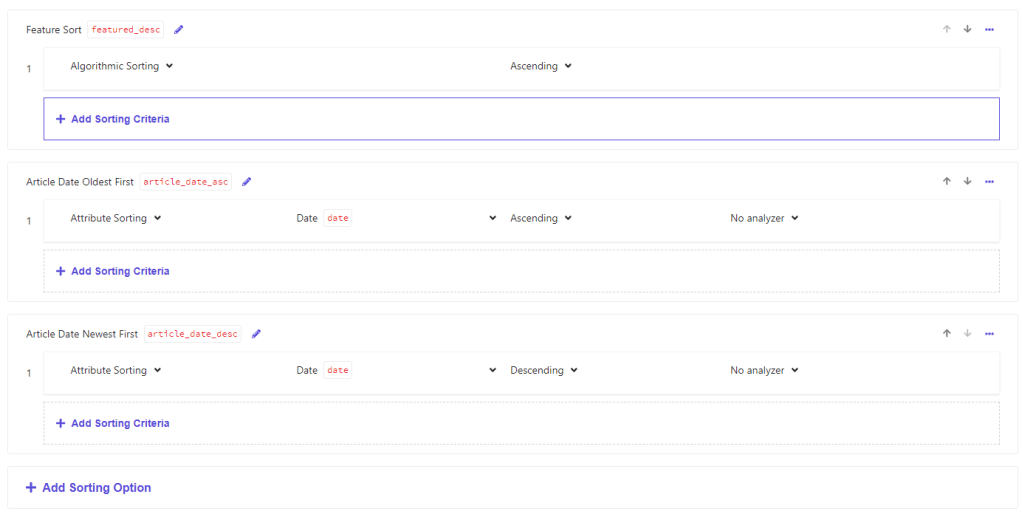
I saved and published the new Sorting Options.
Source Web Crawler Settings
Then I added a new Source with a Web Crawler (Advanced) to pick up the Date field from WordPress blogs. I was adding the Published Time:
<meta property="article:published_time" content="2024-01-08T13:49:23+00:00" />
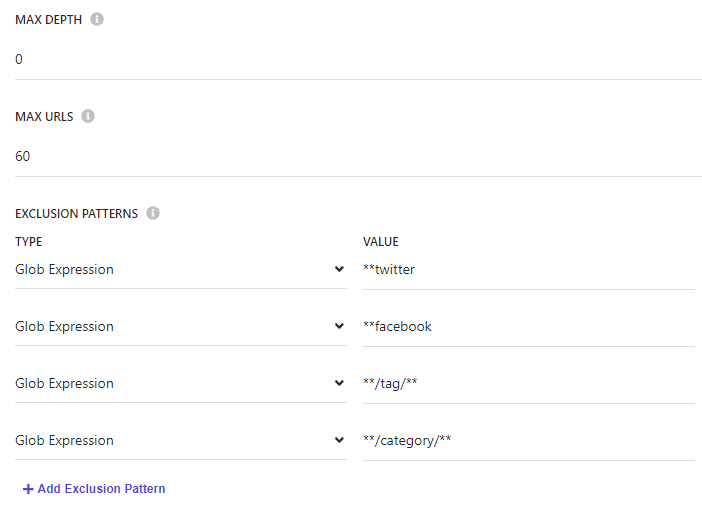
I was getting duplicate entries and some links that I did not want originally, so I changed the settings for my Web Crawler to only include the domain I wanted, I added Glob Expressions to remove unwanted links and made the depth 0. I also limited the Source to one trigger, a Sitemap trigger.
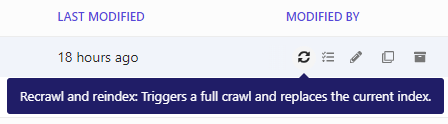
I stopped using the “Trigger Source Scan After Publishing The Source” check box during publishes because I noticed there are two types of scans: a Recrawl and Reindex and just a Reindex. While setting up the crawler I want a Recrawl and Reindex scan because it deletes the index before running.
Document Extractor
For the Document Extractor I wanted to experiment with Cheerio, so I built a small NodeJS application to scrape my site and run Cheerio functions against the given URLs. I used the article referenced below, Web Scraping With Cheerio, as the basis for the app.
| GOTCHA | When using Curl from the PowerShell command window to post data to the test NodeJS server, I kept getting the error “A positional parameter cannot be found that accepts argument“. I had to run this command to get rid of the error and allow Curl to post data:Remove-item alias:curl |
My extractor code looks like this:
// Sample extractor function. Change the function to suit your individual needs
function extract(request, response) {
    $ = response.body;

    return [{
        'description': $('meta[property="og:description"]').attr('content'),
        'name': $('meta[property="og:title"]').attr('content'),
        'type': $('meta[property="og:type"]').attr('content') || 'website_content',
        'url': $('meta[property="og:url"]').attr('content'),
        'date':  $('meta[property="article:published_time"]').attr('content')
    }];
}
Which captures the date and time in its entirety: 2024-01-08T13:49:23+00:00. It was more straight-forward than I thought it would be (I didn’t have to write code to drop the “+00:00” from the time).
Content Collection
To see my new attribute, I open the Content Browser from the Content Collection page, choose my new source from the Source drop-down list and added the Date column to the list of results using the Column icon:
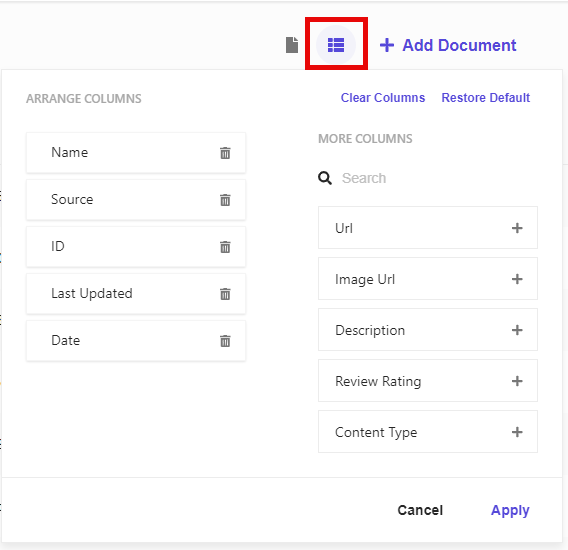
Now I see that most of my results have the Date attribute populated.
Sitecore Partial Design
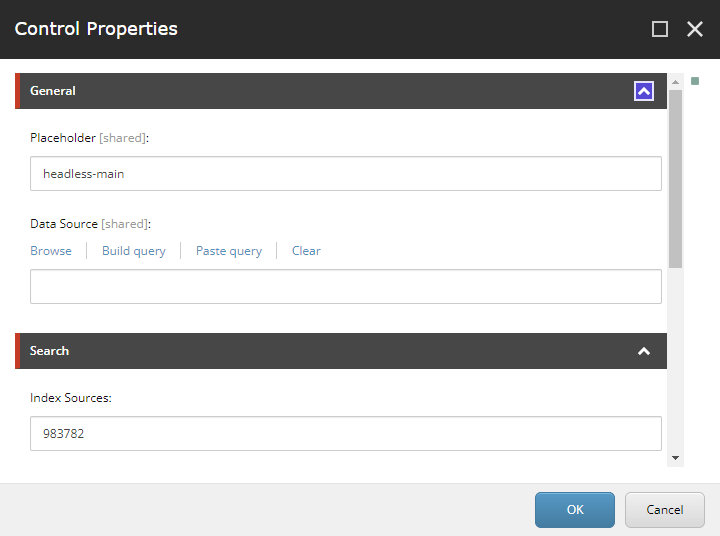
I change my Partial Design for Search results to use my new Source by changing the Index Sources value in Presentation Details (Final Layout) to my new Source ID (this was set up in my previous blog Sitecore Search with XM Cloud Quick Start):
For the code I made some changes to the SearchResults.tsx file. I added date to the ArticleModel model because I want to show it in the search results to make sure it is working properly:
type ArticleModel = {
  id: string;
  type?: string;
  title?: string;
  name?: string;
  subtitle?: string;
  url?: string;
  description?: string;
  content_text?: string;
  image_url?: string;
  source_id?: string;
  date?: EpochTimeStamp;
};
I made some other code changes to see the drop-down list of sort options better and to add the date to the search results:
              {/* Sort Select */}
              <section>
                {totalItems && (
                  <div>
                    Showing {itemsPerPage * (page - 1) + 1} -{' '}
                    {itemsPerPage * (page - 1) + articles.length} of {totalItems} results
                  </div>
                )}
                <SortSelect.Root
                  defaultValue={sortChoices[selectedSortIndex]?.name}
                  onValueChange={onSortChange}
                >
                  <SortSelect.Trigger>
                    <SortSelect.SelectValue>
                      {selectedSortIndex > -1 ? sortChoices[selectedSortIndex].label : ''}
                    </SortSelect.SelectValue>
                    <SortSelect.Icon />
                  </SortSelect.Trigger>
                  <SortSelect.Content>
                    <SortSelect.Viewport style={{ background: 'white', outline: 'solid' }}>
                      {sortChoices.map((option) => (
                        <SortSelect.Option value={option} key={option.name}>
                          <SortSelect.OptionText>{option.label}</SortSelect.OptionText>
                        </SortSelect.Option>
                      ))}
                    </SortSelect.Viewport>
                  </SortSelect.Content>
                </SortSelect.Root>
              </section>

              {/* Results */}
              <div>
                {articles.map((a, index) => (
                  <ArticleCard.Root key={a.id} article={a as ArticleModel}>
                    <ArticleCard.Title data-testid="contentSRItemTitle" style={{ paddingTop: 12 }}>
                      <a
                        href={a.url}
                        onClick={(e) => {
                          e.preventDefault();
                          onItemClick({
                            id: a.id,
                            index,
                            sourceId: a.source_id,
                          });
                          window.open(a.url, '_blank');
                        }}
                        data-testid="contentSRItemLink"
                      >
                        {a.title || a.name}
                      </a>
                    </ArticleCard.Title>
                    <ArticleCard.Content>
                      {a.content_text}
                      {a.description}
                      {a.date && new Date(Date.parse(a.date?.toString())).toLocaleDateString()}
                    </ArticleCard.Content>
                  </ArticleCard.Root>
                ))}
              </div>
The sorting options are picked up automagically from Sitecore to fill the drop-down list and they work for sorting by date:

References
- https://doc.sitecore.com/discover/en/users/discover-user-guide/walkthrough–adding-an-attribute-as-a-sorting-option.html
- https://doc.sitecore.com/discover/en/users/discover-user-guide/add-a-new-product-attribute.html
- https://circleci.com/blog/web-scraping-with-cheerio
- https://mincong.io/2019/04/16/glob-expression-understanding
- https://cheerio.js.org/docs/basics/manipulation
- https://stackoverflow.com/questions/28128918/positional-parameter-error-when-posting-data-with-curl
 Sitecore XM Cloud